Entity linking
At a glance
Link one or more data sources to one or more ontology entities. Synced data appears in source-linked spreadsheets with one tab per source.
Before you start
- At least one connector configured (see Connector catalogue)
- At least one entity created in the ontology (see Modeler)
From the configuration wizard
At step 4 of the connector configuration wizard, select the target entity from the dropdown list.
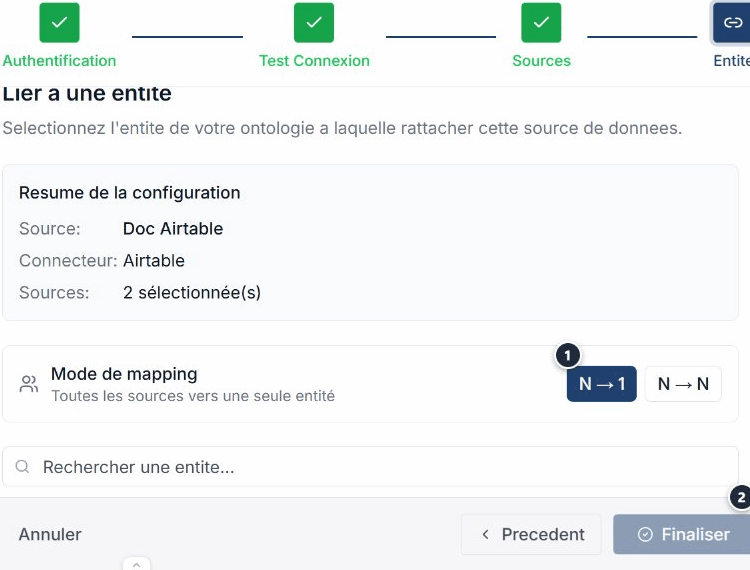
The link is created automatically when the wizard completes.
From the entity Sources tab
You can also link a source from the ontology:
- Open an entity in the ontology.
- Click the Sources tab.
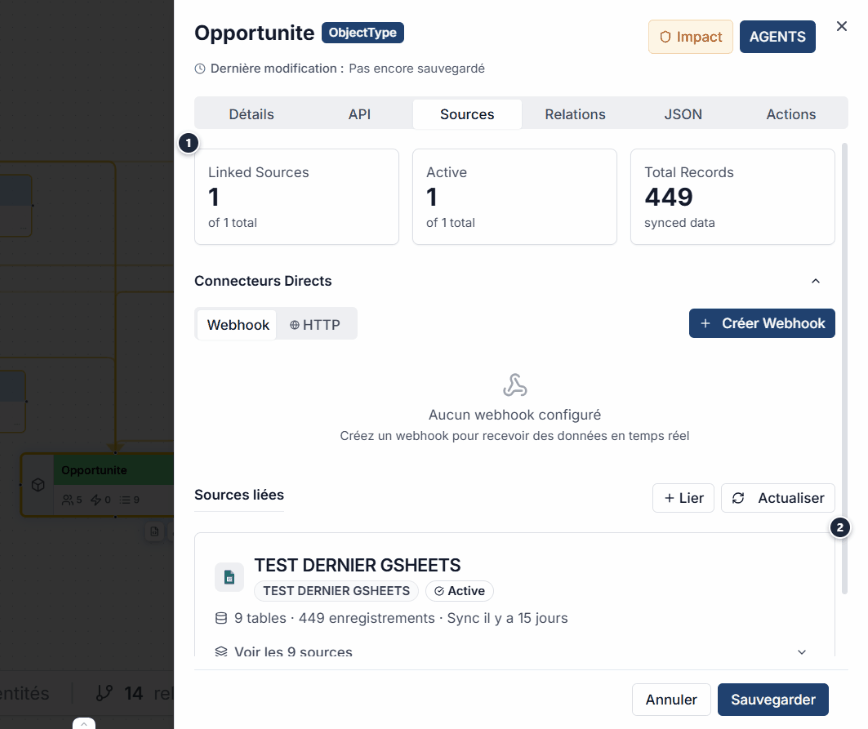
- Click Link a source to open the selection modal.
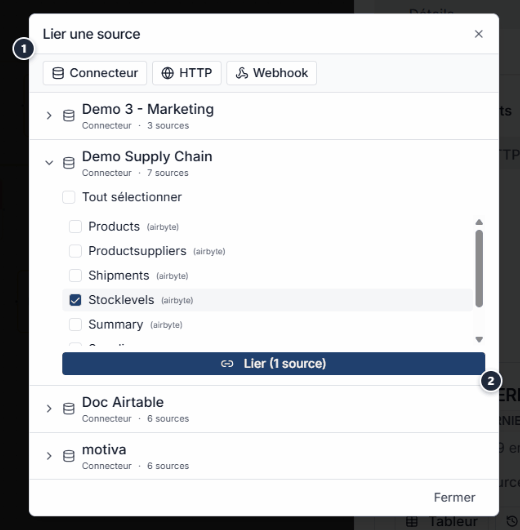
- Select the source to link and confirm.
Result: source-linked spreadsheet
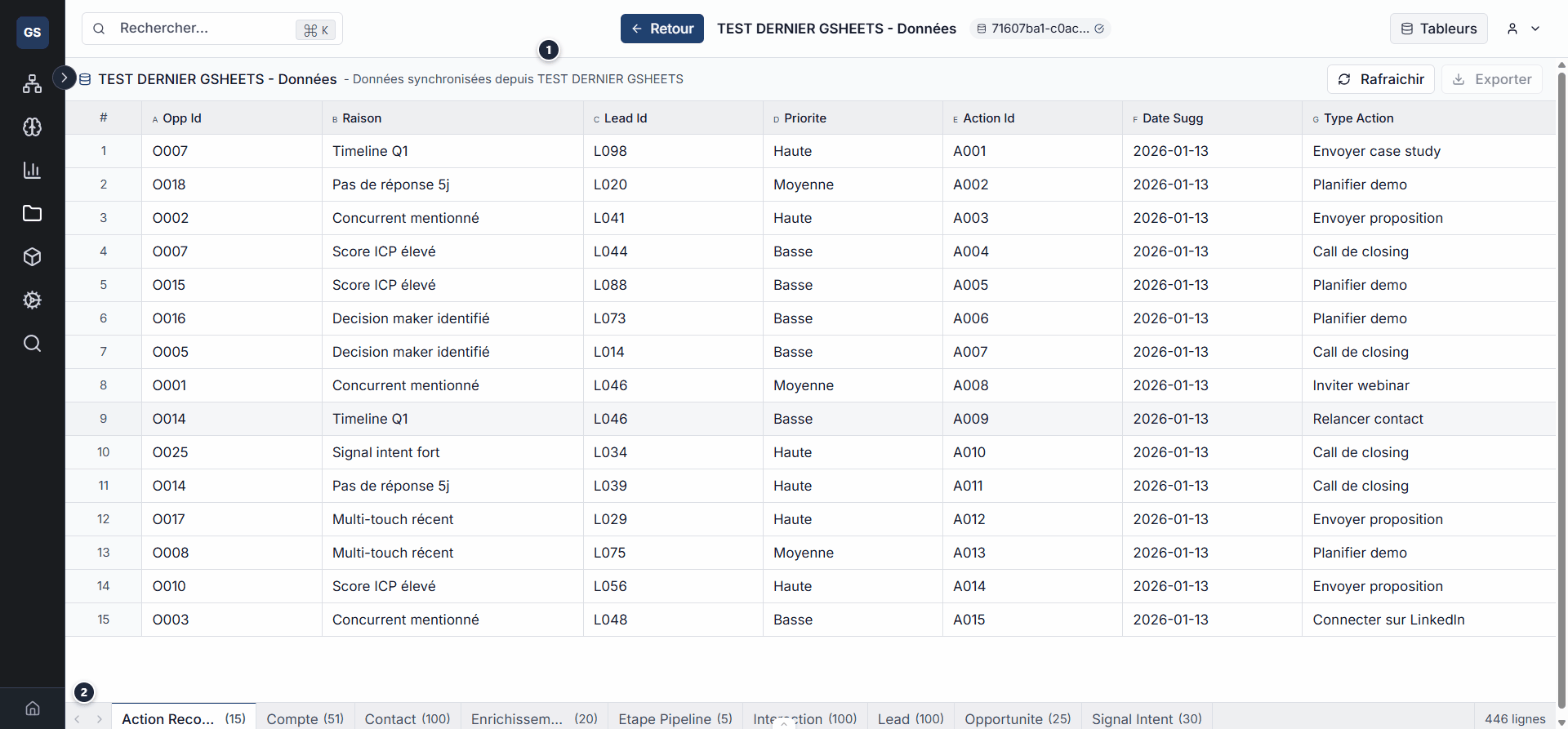
Once the link is established, synced data is accessible in a dedicated spreadsheet:
- Each linked source generates a tab in the spreadsheet.
- Data updates continuously with each sync.
Possible relationships
| Schema | Description |
|---|---|
| 1 source -> 1 entity | Simple case: one API feeds one entity. |
| N sources -> 1 entity | Multiple sources converge into the same entity (e.g. CRM + ERP -> Clients). |
| 1 source -> N entities | A single source feeds multiple entities (e.g. Airtable -> Contacts + Deals). |
Common errors
| Error | Solution |
|---|---|
| Source not visible in the selector | Check that the connector is active in Data Sources. |
| Missing data in the spreadsheet | Check the streams selected in the connector configuration. |
| Entity not visible | Check that the entity exists in the active ontology space. |
Expected outcome
Source linked to entity
Data flows into the source-linked spreadsheet and updates automatically with each sync.
Data flows into the source-linked spreadsheet and updates automatically with each sync.
See also
- Connector catalogue -- Browse and configure your connectors.
- Data Sources -- Manage all your configured sources.
- Monitoring -- Track the health of your syncs.
Need help?
Write to us: Support and contact.