Connector Catalogue
At a glance
Ontologie offers a catalogue of over 300 ready-to-use connectors to import data from your business tools (CRM, databases, marketing, analytics, e-commerce).
Before you start
- Access to an Ontologie workspace
- Credentials for the external source (API key or OAuth account)
Browse the catalogue
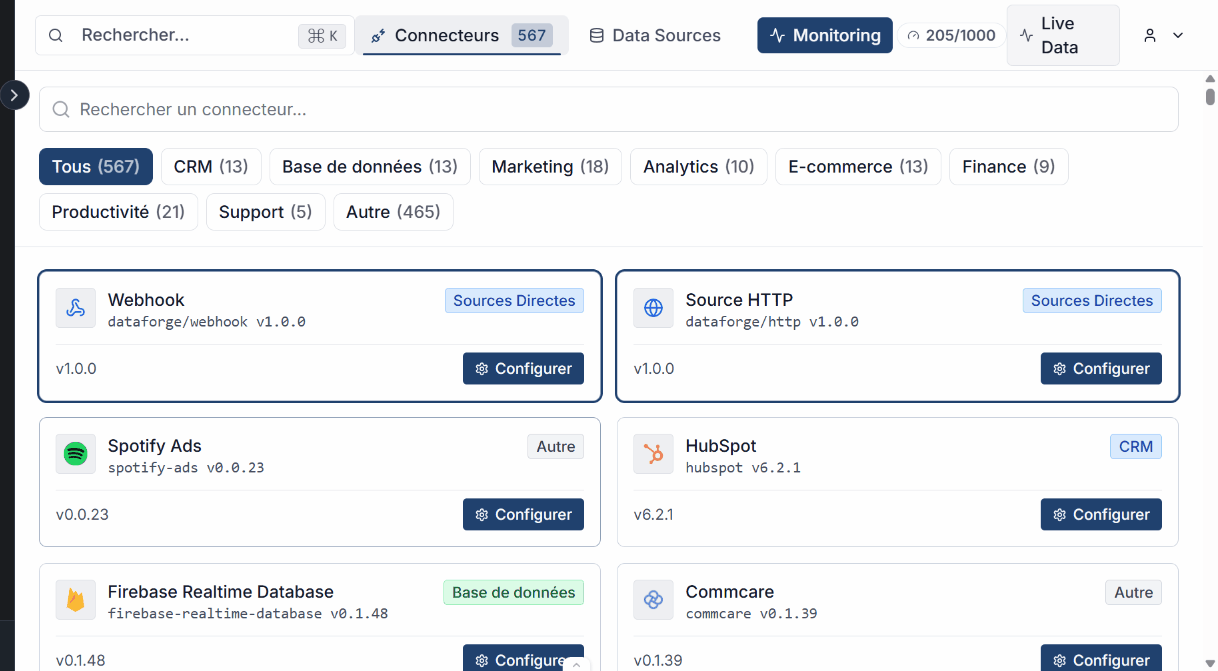
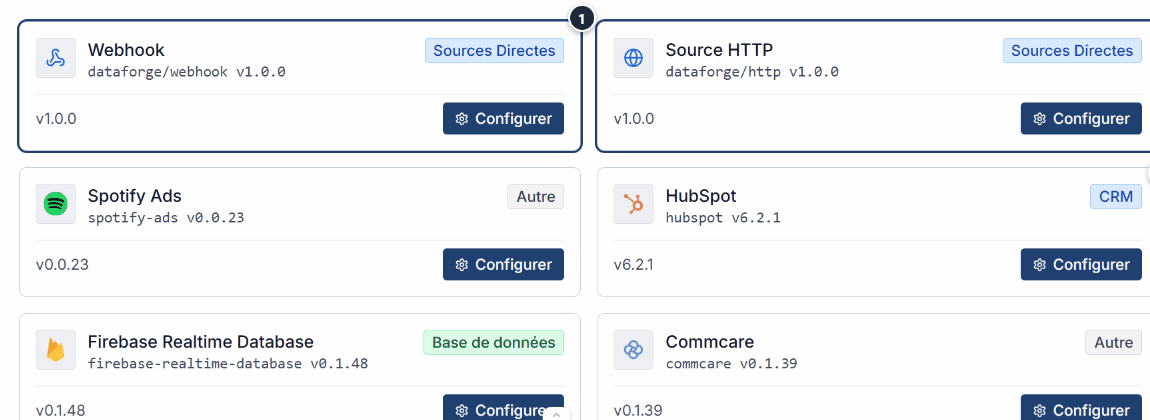
From Live Data, open the Connectors tab to browse the catalogue. Each connector is displayed as a card with its name, logo, category, and connection type.
Search and filter
Use the search bar to find a connector by name. Combine with category filters to narrow down the results: CRM, Database, Marketing, Analytics, E-Commerce, File Storage.

Connection types
Each connector uses a connection type suited to the external source.
| Type | How it works | Example |
|---|---|---|
| OAuth | Connection via an authorization popup. Scopes are configured automatically or customized. | Google Drive, HubSpot, Shopify |
| API Key | Manual entry of an API key or personal access token. | Airtable, Stripe |
| Other | Basic auth, bearer token, custom headers. | Custom APIs |
Featured connectors
The most popular connectors have dedicated configuration pages.
| Connector | Auth type | Configuration page |
|---|---|---|
| Google Drive | OAuth | Configure Google Drive |
| Google Sheets | OAuth | Configure Google Sheets |
| Airtable | API Key | Configure Airtable |
| Microsoft OneDrive | OAuth | Configure OneDrive |
| HubSpot | OAuth | Configure HubSpot |
| Stripe | API Key | Configure Stripe |
| Shopify | OAuth | Configure Shopify |
Configure a connector
Configuring a connector involves 4 steps: selecting the connector, entering credentials, choosing the streams to synchronize, and validating the connection. The process varies depending on the authentication type:
- API Key Connector — For sources using an API key or access token.
- OAuth Connector — For sources using OAuth authorization (authorization popup).
Expected outcome
Your connector is configured and ready to synchronize. The source appears in the Data Sources tab where you can monitor its status and manage its synchronizations.
See also
- Data Sources — Manage your configured sources.
- Entity linking — Connect your sources to the ontology.
- Monitoring — Monitor the health of your synchronizations.
- Diagnostics — Identify and fix errors.
Need help?
Write to us: Support and contact.