Spreadsheets
Overview
Spreadsheets let you create, organize and view tabular data directly within the platform. You can create your own spreadsheets, view data synchronized from your external sources, and manage the recycle bin.
Interface
The Spreadsheets interface is organized into three tabs accessible from the top navigation bar:
My spreadsheets
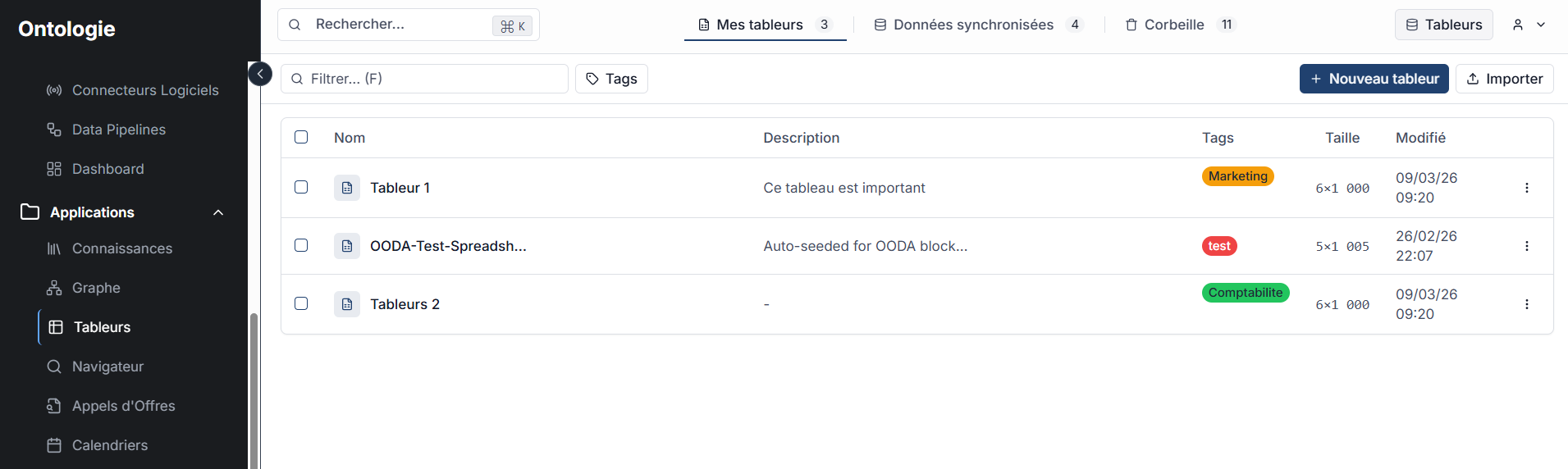
The My spreadsheets tab lists all spreadsheets you have created manually. Each spreadsheet displays:
| Column | Description |
|---|---|
| Name | Spreadsheet name |
| Description | Optional description of the contents |
| Tags | Categorization labels (e.g. Marketing, Accounting, test) |
| Size | Number of columns and rows (e.g. 6x1,000) |
| Modified | Date of last modification |
Available actions:
- New spreadsheet: creates an empty spreadsheet
- Import: imports a file (CSV, Excel) as a new spreadsheet
- Filter: search by name using the filter field (
Ffor keyboard shortcut) - Tags: filter by tag to quickly find your spreadsheets by category
- The context menu (three dots) on each row lets you rename, duplicate, move to recycle bin or manage tags
Synchronized data
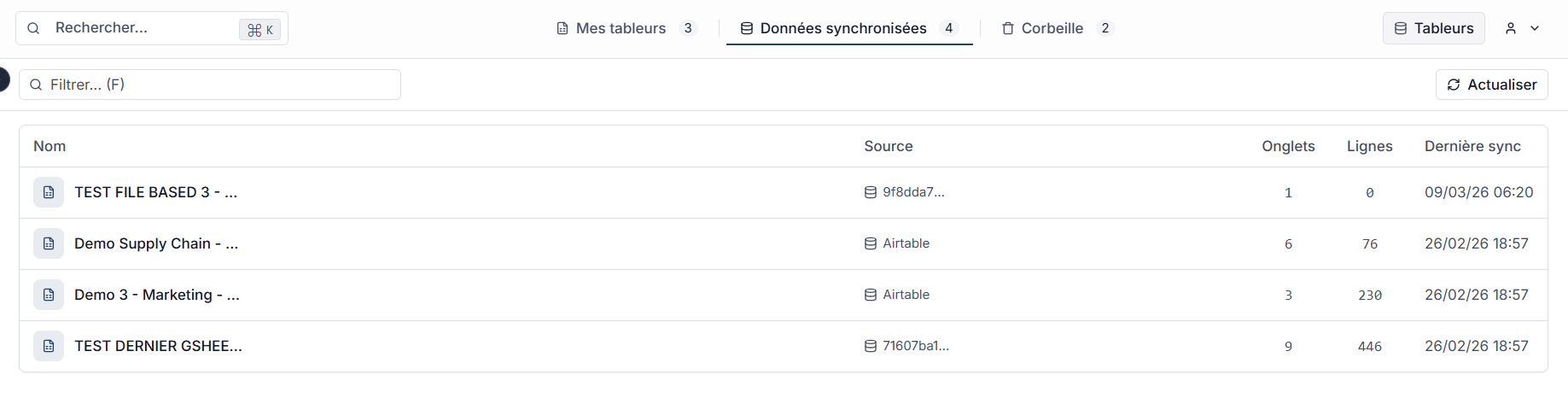
The Synchronized data tab displays spreadsheets automatically fed by your external data sources (Live Data connectors). These spreadsheets are read-only and update automatically.
| Column | Description |
|---|---|
| Name | Synchronized spreadsheet name |
| Source | Data origin (e.g. Airtable, file identifier) |
| Tabs | Number of tabs in the spreadsheet |
| Rows | Total number of synchronized rows |
| Last sync | Date and time of the last synchronization |
The Refresh button in the top right forces a manual resynchronization of all sources.
Synchronized spreadsheets are created automatically when you configure a Live Data connector. You cannot directly modify their data -- it comes from the external source.
Recycle bin
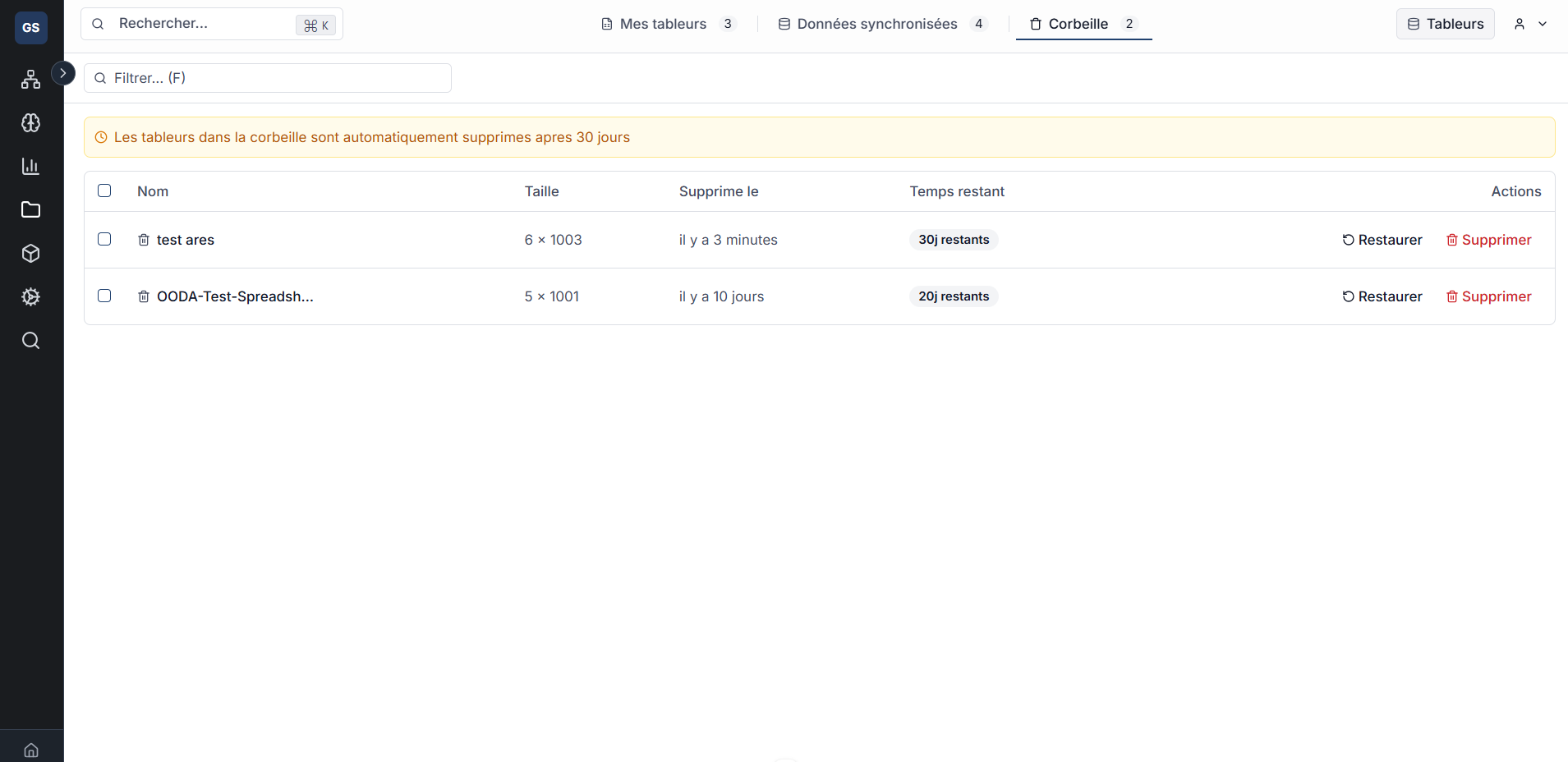
The Recycle bin tab contains deleted spreadsheets. A warning banner reminds you that spreadsheets in the recycle bin are automatically deleted after 30 days.
| Column | Description |
|---|---|
| Name | Deleted spreadsheet name |
| Size | Number of columns and rows |
| Deleted on | Deletion date (e.g. 3 minutes ago, 10 days ago) |
| Time remaining | Number of days before permanent deletion (e.g. 30d remaining, 20d remaining) |
Available actions per spreadsheet:
| Action | Description |
|---|---|
| Restore | Moves the spreadsheet back to the My spreadsheets tab |
| Delete | Permanently deletes the spreadsheet (irreversible) |
Permanent deletion is irreversible. Make sure you no longer need the spreadsheet before confirming.
Links with other modules
- Live Data: Live Data connectors automatically feed synchronized spreadsheets.
- Ontologie: your spreadsheet data can be linked to your business entities.
- Workflows: use spreadsheet blocks in your workflows to read or write data.
Need help?
Contact us: Support and contact.