Configure tools
At a glance
Enable the tools and context that your agent can use during its interactions.
Before you start
- Your agent is created (see Create an agent).
- You know which capabilities are needed for your use case.
Steps
1. Open the agent editor
Open your agent from the gallery. The editor displays in a split view: configuration on the left, test panel on the right.
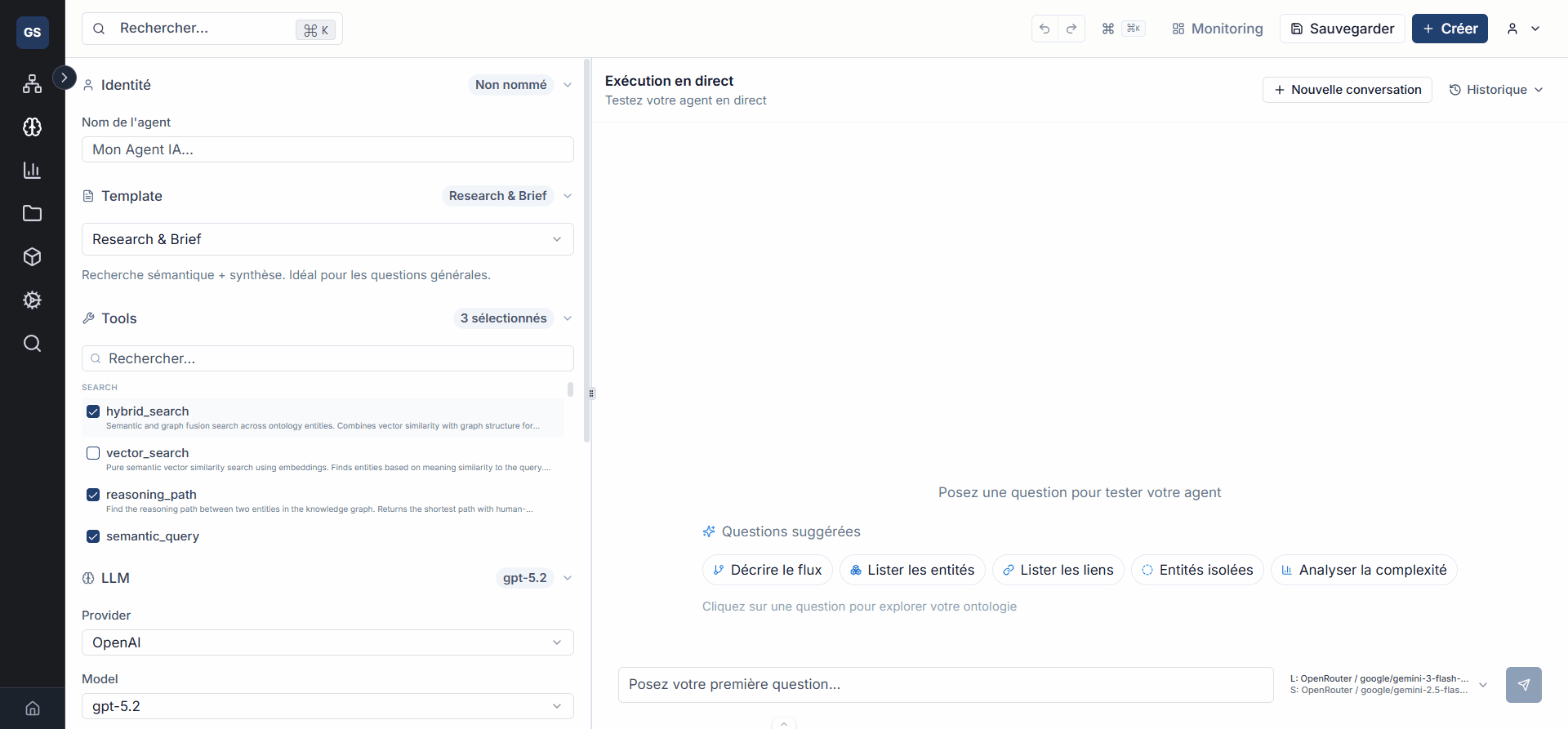
2. Enable tools
In the Tools section, enable the capabilities your agent needs. Each tool gives the agent a specific skill it can use to answer questions.
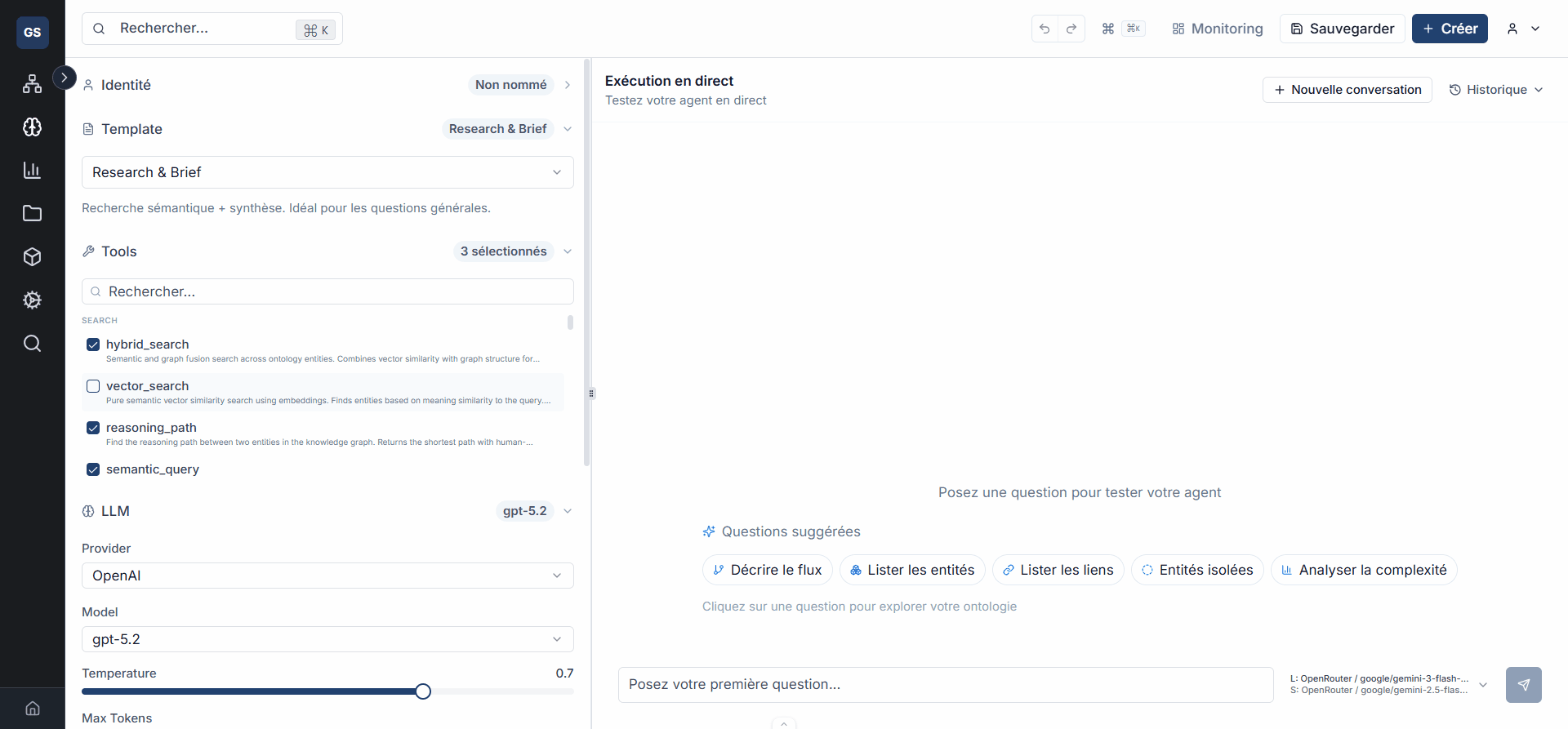
| Tool | Description |
|---|---|
| Ontology search | Allows the agent to explore the entities and relationships in your model. |
| Document search | Allows searching within your knowledge base. |
| Entity creation | Allows the agent to create new entities in the ontology. |
| Workflow execution | Allows launching workflows from the agent. |
Avoid enabling all tools at once. Each tool adds complexity to the agent's reasoning. Start with a minimal set and expand progressively based on your test results.
3. Define the ontology context
In the Ontology context section, select the spaces and entities the agent can access. This defines its knowledge scope: the agent will only see the entities included in this context.
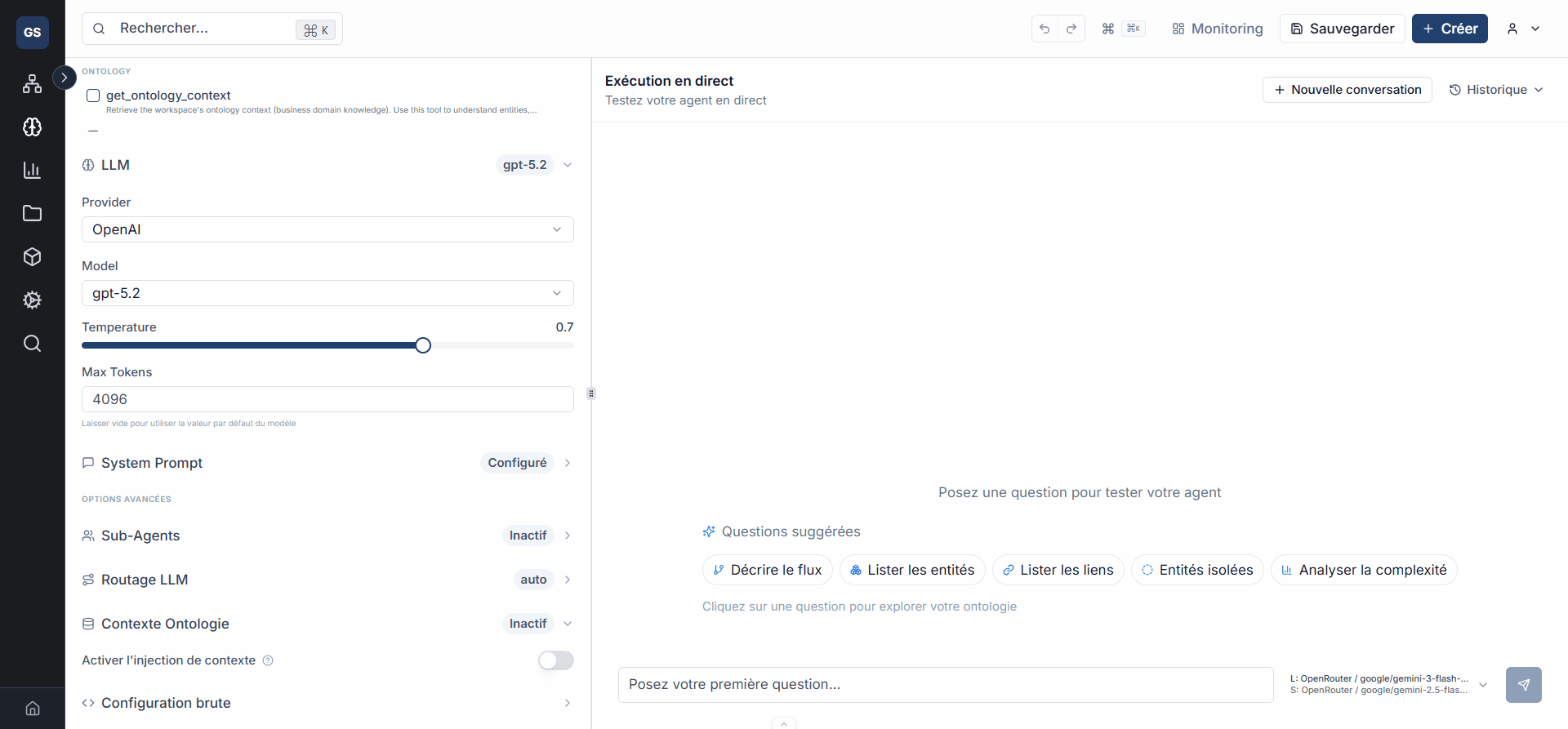
Example: for an agent dedicated to supply chain, select only the "Supplier", "Product", "Order" entities and their relationships. The agent will not have access to HR or financial entities.
4. Adjust the system instructions
Write or edit the system instructions (prompt) to guide the agent's behavior:
- Tone and language: formal or conversational, French or English.
- Boundaries: what the agent should or should not do.
- Response format: lists, tables, short answers, etc.
Example: "You are an assistant specialized in supply chain. Always answer in English, concisely. If you cannot find the information, state it clearly."
5. Save the configuration
Save your changes. The configuration is applied immediately for subsequent tests.
Expected outcome
Your agent is configured with the tools, ontology context, and instructions suited to your use case. It is ready to be tested.
Next steps
- Test and evaluate: validate that the agent responds correctly.
Need help?
Write to us: Support and contact.