Import documents
At a glance
Add your files to the Knowledge Base to make them searchable and connect them to your relationship graph.
Before you start
- You have access to an Ontologie workspace.
- Your documents are ready in an accepted format (PDF, DOCX, Markdown, TXT, or HTML).
- Each file is under 50 MB.
Document library
The library displays all your documents as a grid or a list. You can filter by status, format, source, tags, or date added.
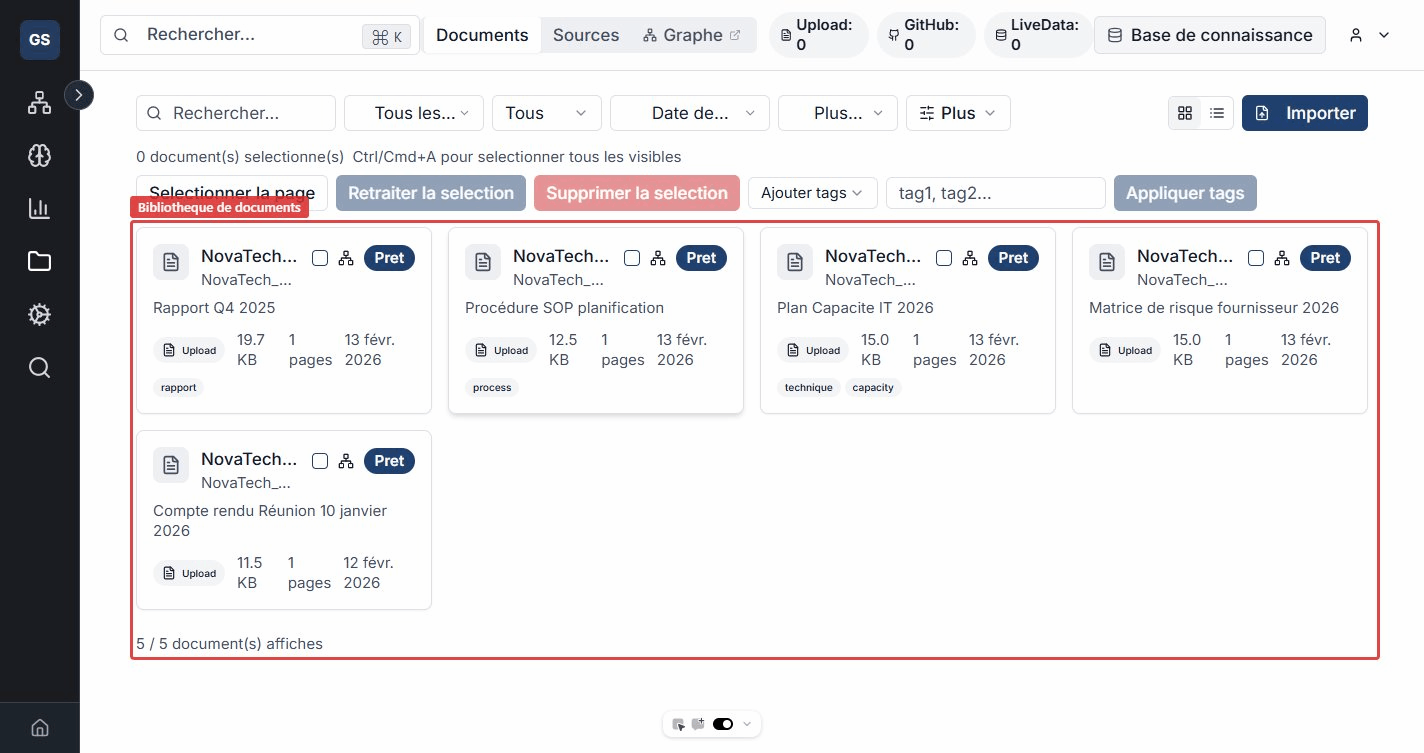
Available filters
- Status: Ready, Processing, Error.
- Format: PDF, DOCX, Markdown, Text, HTML.
- Source: filter by origin (manual import, GitHub, Confluence, etc.).
- Tags: search by keywords with automatic suggestions.
- Date: set a date range (from / to).
Add files
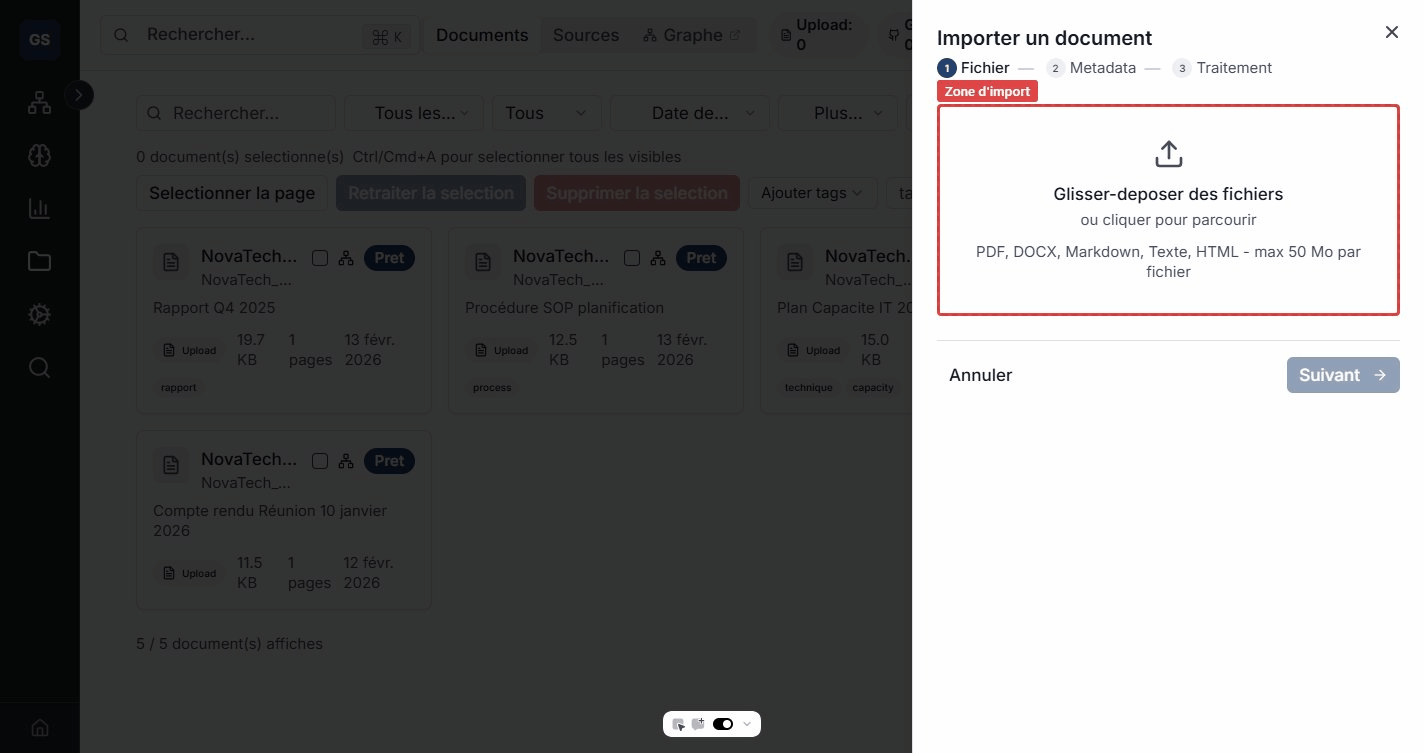
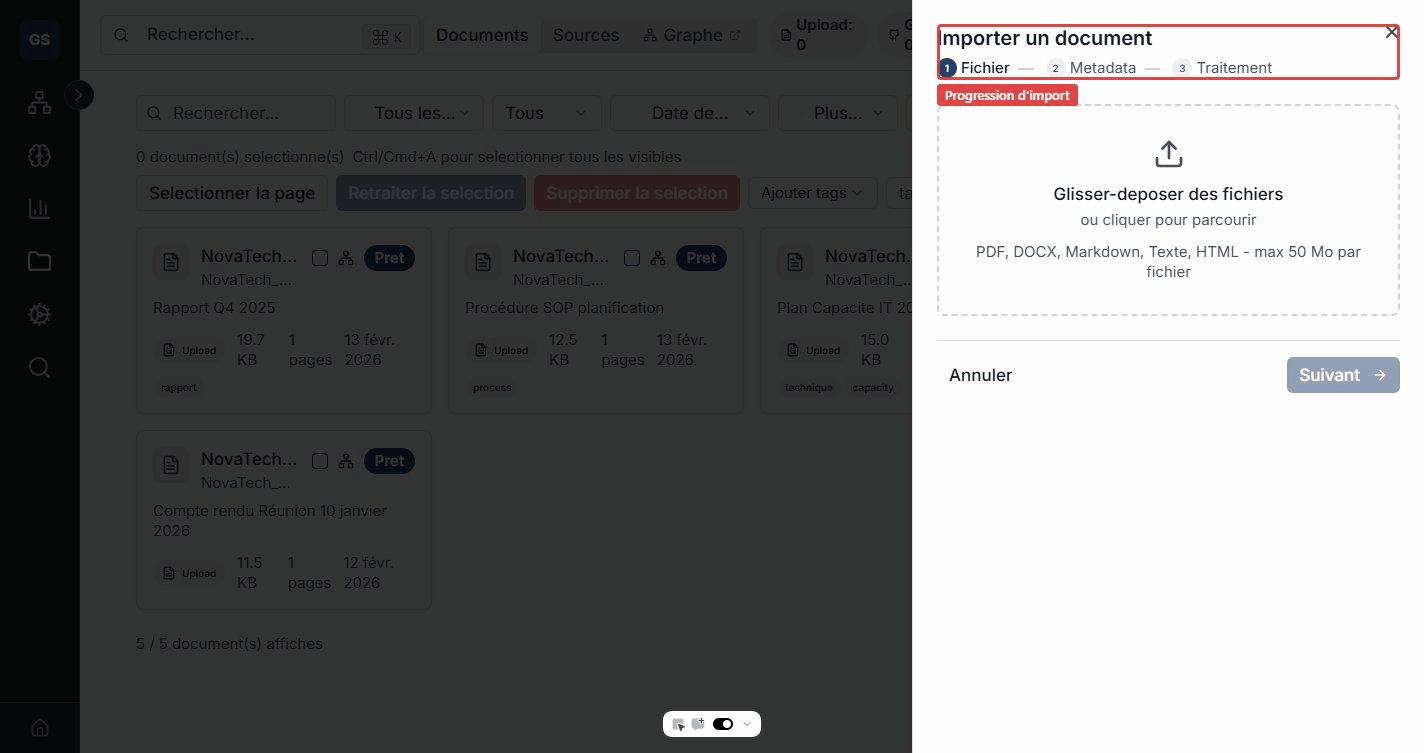
Click the Import button or drag and drop your files directly into the library. The import wizard guides you through three steps.
Accepted formats
| Format | Extensions |
|---|---|
.pdf | |
| Word | .docx |
| Markdown | .md |
| Plain text | .txt |
| HTML | .html |
Maximum size: 50 MB per file. You can import up to 50 files at once.
Step 1: File selection
Drag your files into the drop zone or click to browse your computer.
Step 2: Metadata
For each file (or in bulk), you can fill in:
- Title: pre-filled from the file name, editable.
- Description: a free-form summary of the content.
- Category: classify the document (Technical, Legal, HR, etc.).
- Tags: add keywords to make searching and filtering easier (for example: "contract", "supplier", "2026").
- Space: associate the document with a space in your ontology (for example "Supply Chain" or "Human Resources").
All these fields are optional. You can edit them after import.
Use consistent tags from the start (for example "legal" rather than alternating between "legal" and "law"). This makes filtering and bulk actions easier later on.
Step 3: Processing
The import starts and you can follow each file's progress in real time. Processing (extraction, indexing, entity detection) continues in the background.
View a document
Click a document to open its detail page. You will find:
- Metadata: title, description, category, tags, origin source, and date added.
- Extracted content: the document text, organized by pages or sections.
- Detected entities: names, locations, organizations, and concepts automatically identified in the text.
- Processing status: each step (extraction, chunking, indexing, etc.) with its status.
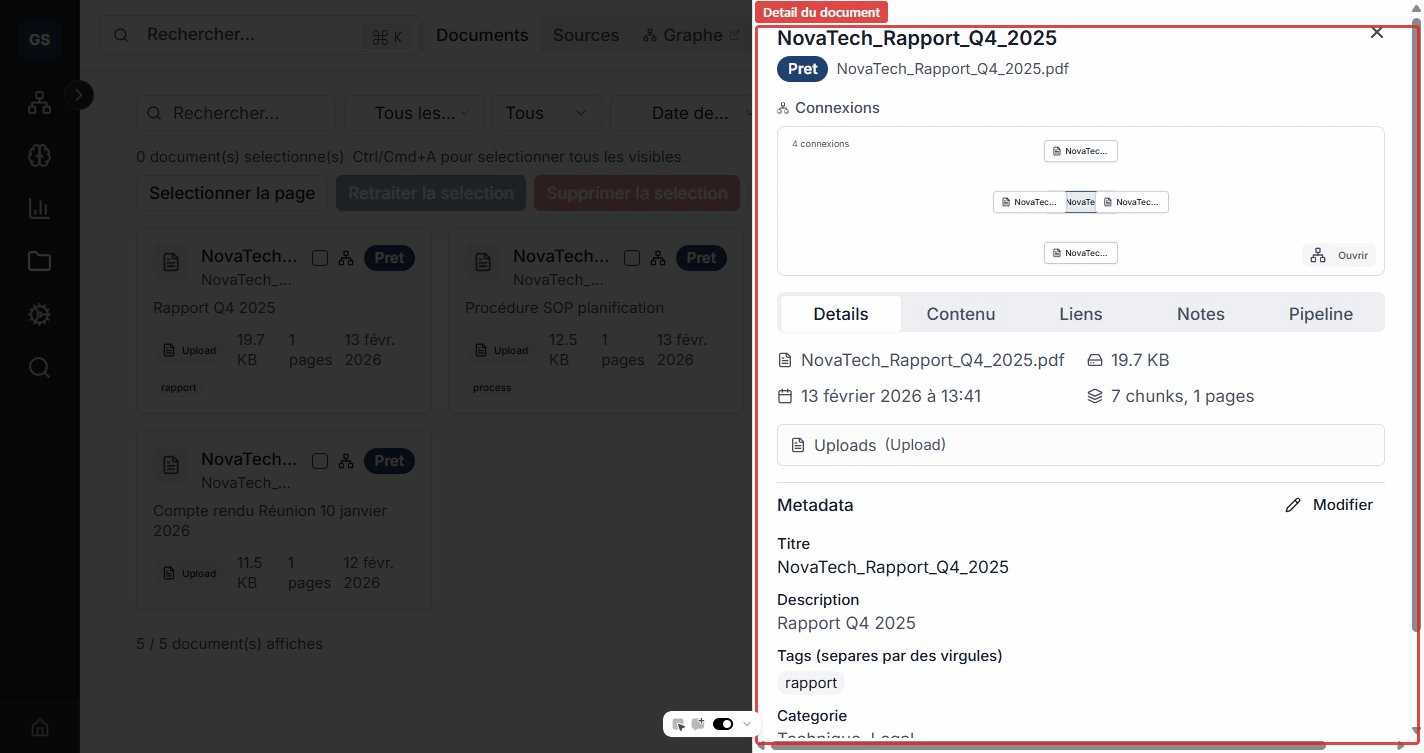
From the detail page, you can:
- Edit the title, description, category, and tags.
- Re-run processing if the document has been updated.
- Download the original file.
- Delete the document from the base.
Bulk actions
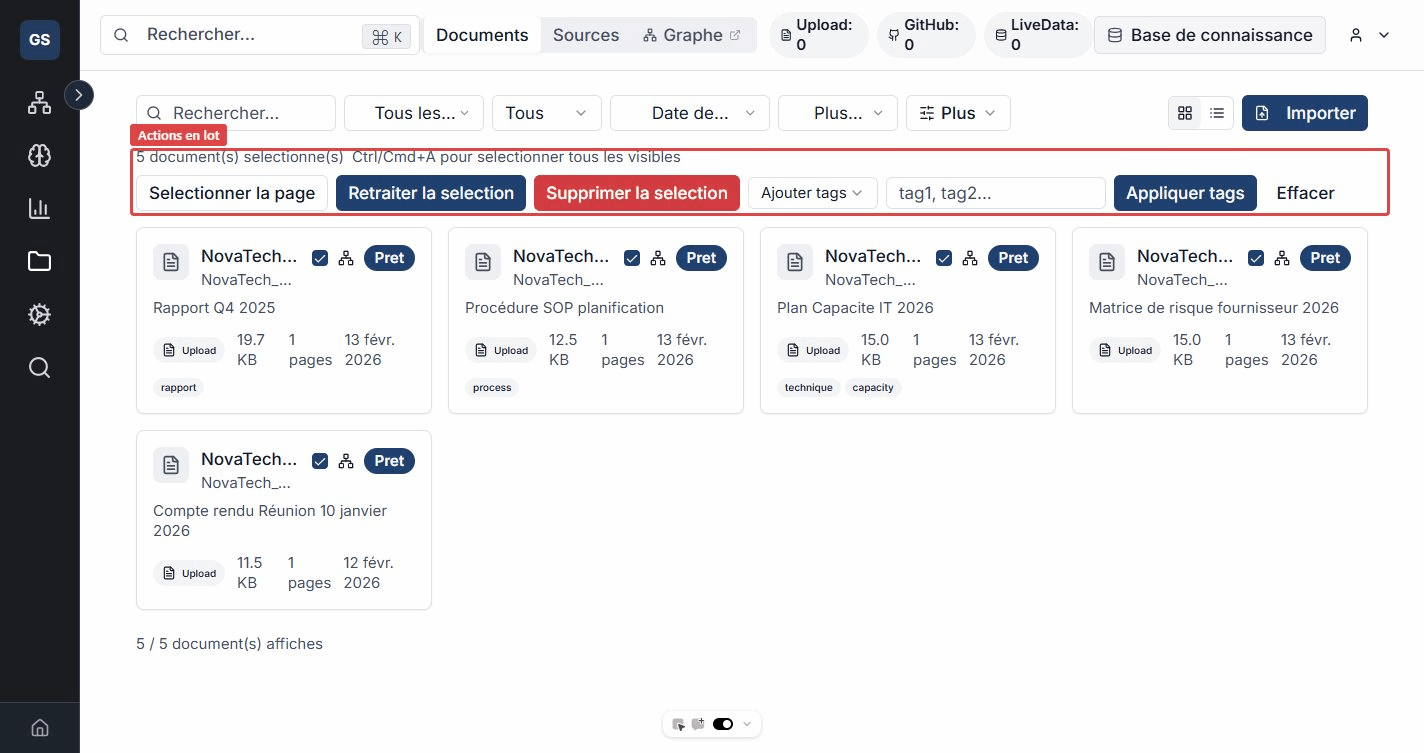
Select multiple documents (via checkboxes or the "Select page" button) to perform grouped actions:
- Add tags to the selection -- for example, tag 20 documents as "archive-2025" in one click.
- Replace tags -- replace "draft" with "validated" on all selected documents.
- Remove tags from specific documents.
- Re-run processing on selected documents (useful after an entity model update).
- Delete selected documents.
Navigation
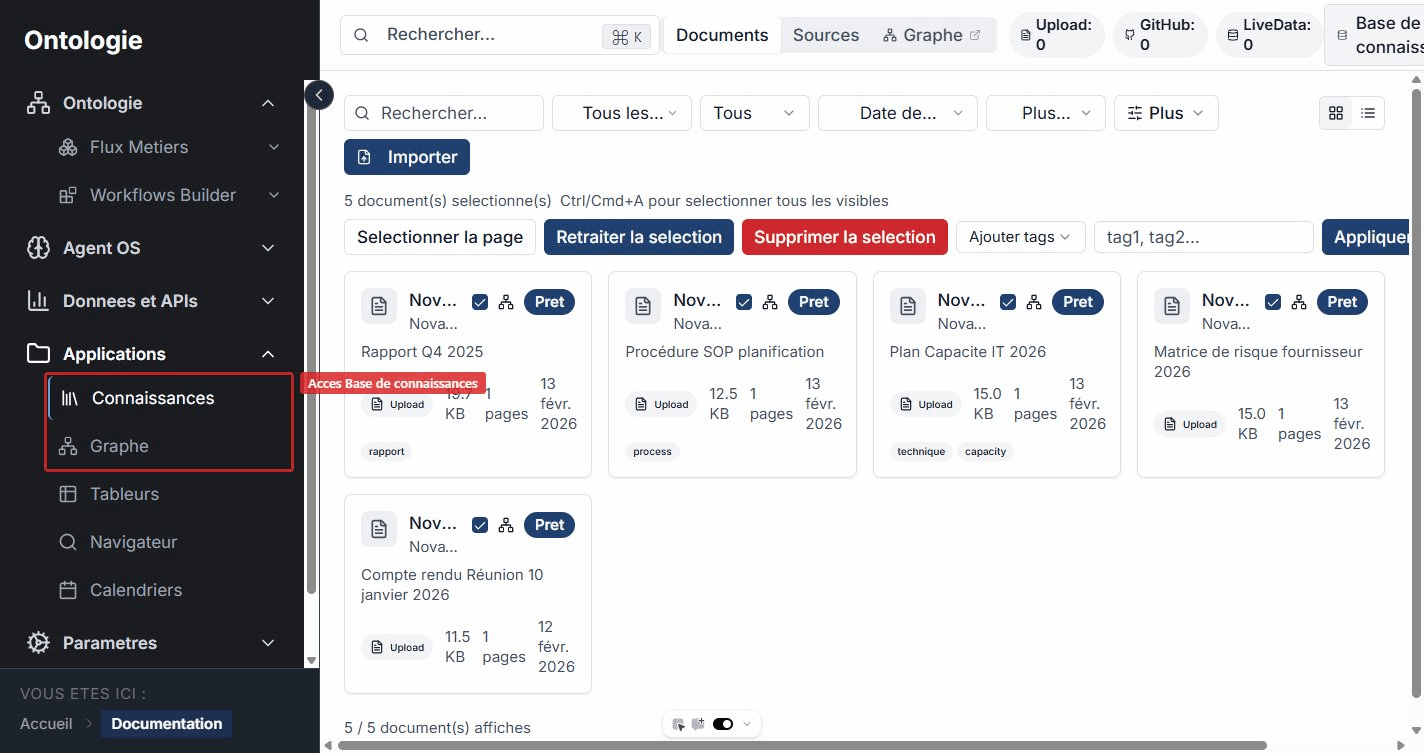
Find the Knowledge Base and the Graph from the sidebar, under the Applications section.
Expected outcome
Your documents are imported, indexed, and searchable. Detected entities are automatically linked to your ontology, and your documents appear in the relationship graph.
Need help?
Write to us: Support and contact.