Sources and synchronization
At a glance
External sources let you automatically feed your Knowledge Base from your existing tools and services. Once configured, a source periodically synchronizes its documents without manual intervention.
Before you start
- You have access to an Ontologie workspace.
- You have the credentials or access tokens for the source you want to connect (for example: GitHub token, Confluence access, S3 key).
- If you are using a LiveData source, the connector must already be configured in LiveData.
Source list
The Sources tab displays all connected sources with their status, the number of indexed documents, and the date of the last synchronization.
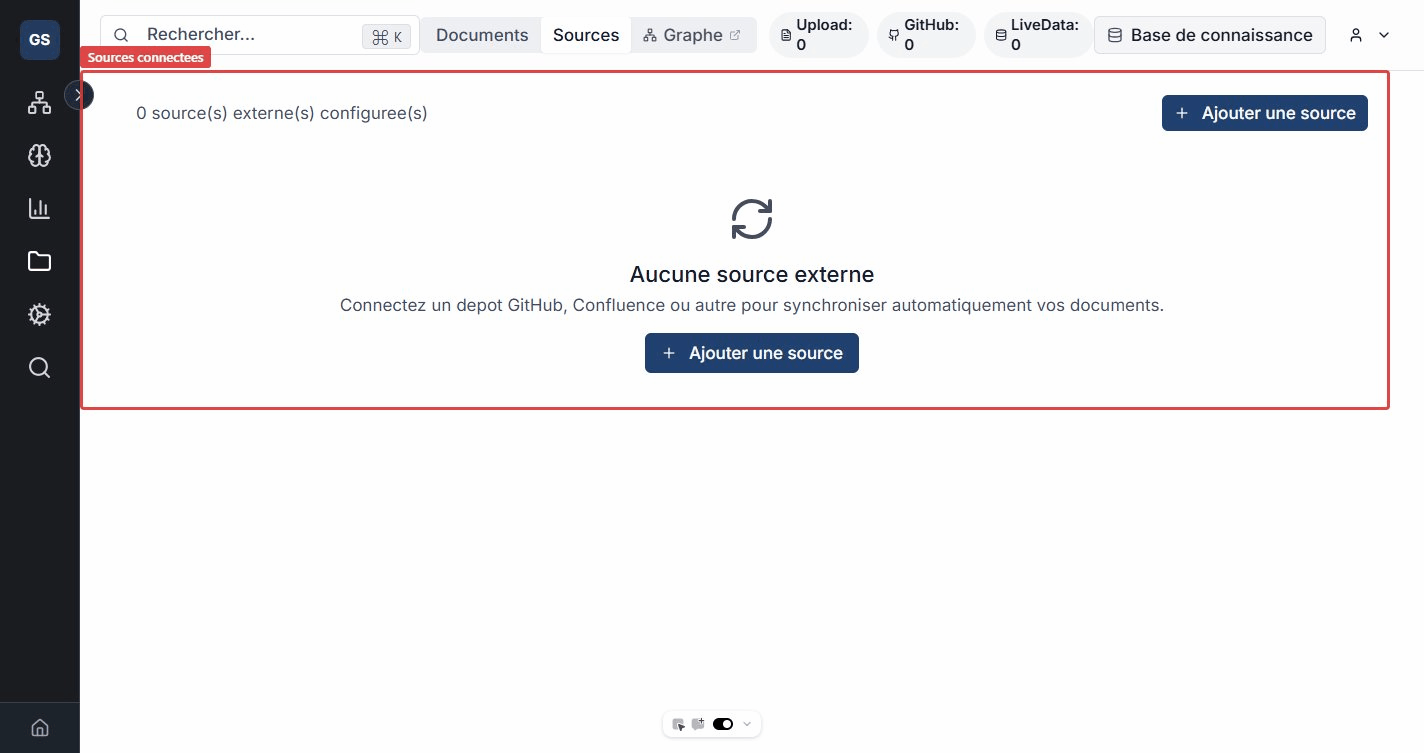
Create a source
Click Create a source to connect a new service. Six source types are available:
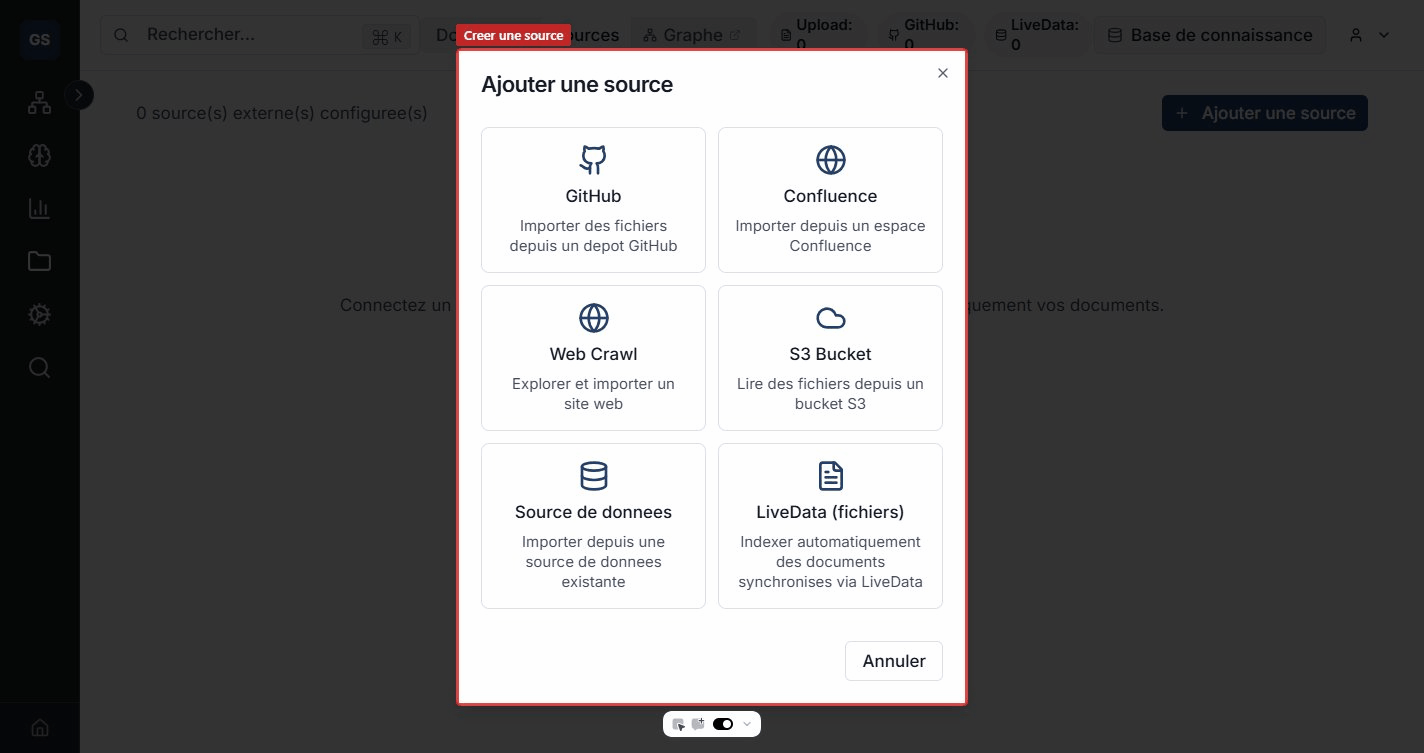
Source types
| Type | Description | Use case |
|---|---|---|
| GitHub | Imports files from a GitHub repository. | Technical documentation, Markdown files, source code. |
| Confluence | Imports pages from a Confluence space. | Company wiki, project documentation. |
| Web Crawl | Crawls and imports pages from a website. | Competitive intelligence, online documentation. |
| S3 | Reads files from an Amazon S3 bucket. | Document archives, automated exports. |
| Data source | Imports from an existing data source. | Structured data, tables, schemas. |
| LiveData | Indexes files from your LiveData connectors (Google Drive, OneDrive, Dropbox, SharePoint, etc.). | Collaborative documents, team-shared files. |
Configuration
Each source type requires specific information (URL, access keys, space, branch, etc.). A connection test lets you verify the configuration before launching the first synchronization.
Example: to connect a GitHub repository, enter the repository owner, the repository name, the branch (defaults to
main), and a personal access token. All Markdown and PDF files in the repository will be automatically imported.
LiveData example: if you have already configured a Google Drive connector in LiveData, you can use it here to automatically index your Drive documents in the Knowledge Base. New files added to the Drive will be synchronized at each cycle.
Synchronization
Once the source is created, synchronization starts automatically. You can then:
- Launch a manual synchronization at any time.
- Pause automatic synchronization.
- View the history of past synchronizations (date, duration, number of documents processed, any errors).
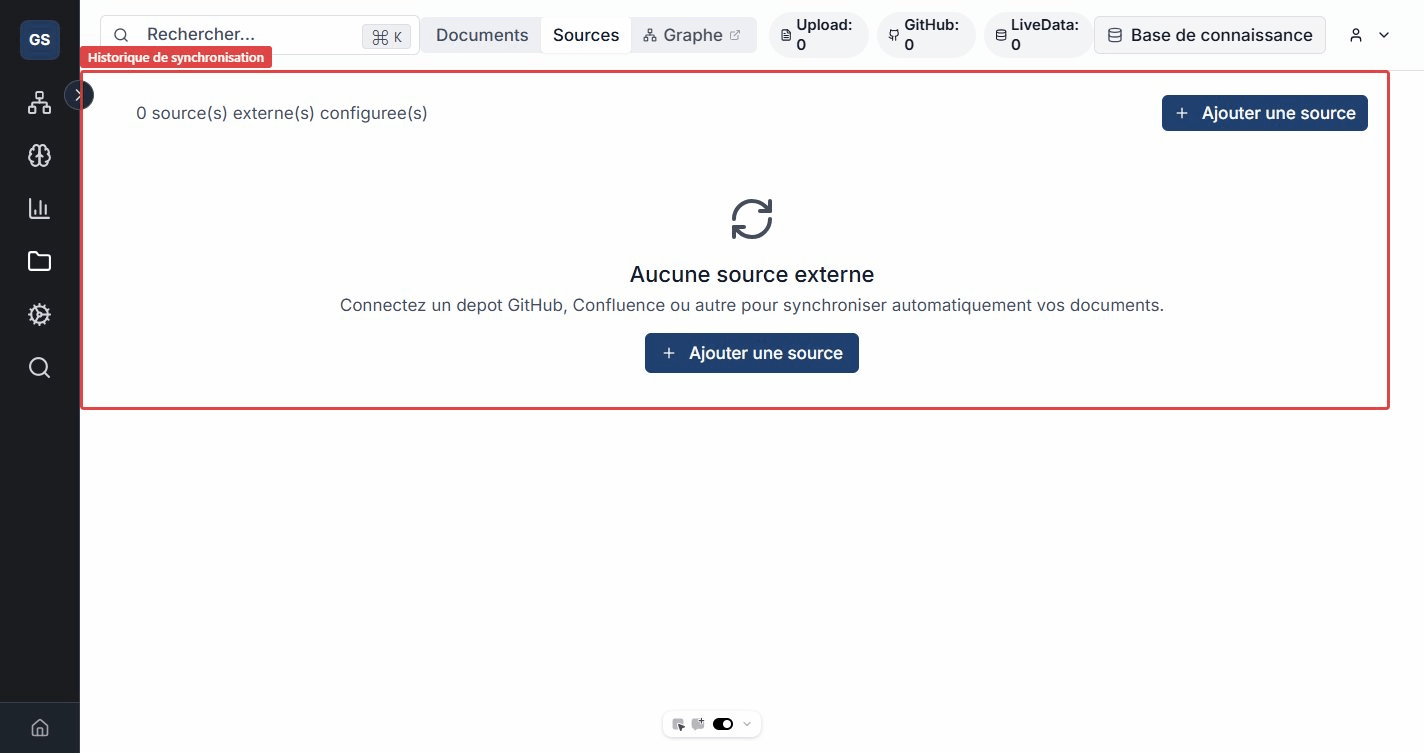
New documents detected during a synchronization are automatically imported and processed (extraction, indexing, entity detection).
Bulk tags
From the Documents tab, select multiple documents to manage their tags in bulk: add, replace, or remove tags across the selection.
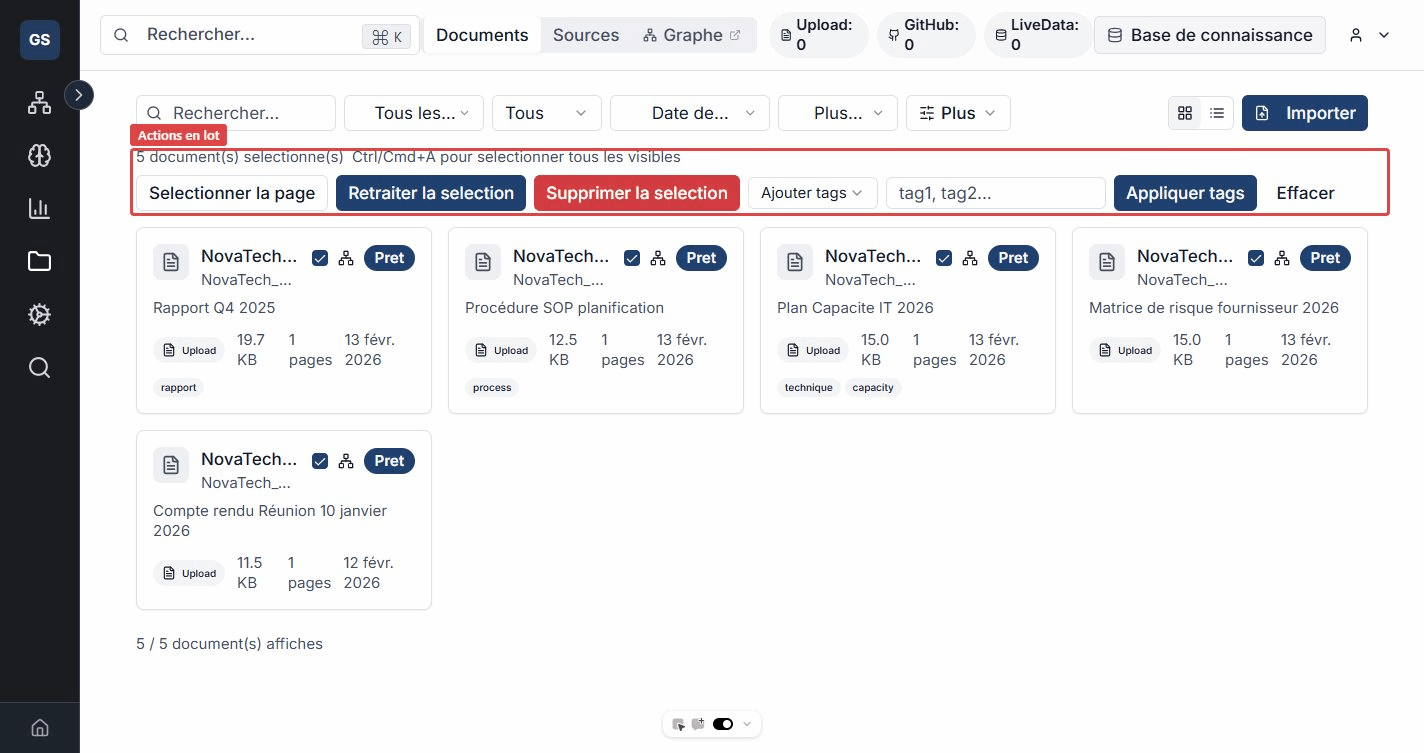
Expected outcome
Your external source is connected and synchronized. Documents are automatically imported, indexed, and linked to your knowledge graph at each synchronization cycle.
Need help?
Write to us: Support and contact.