Edit an event
At a glance
Learn how to view and edit an existing event directly from the calendar.
Before you begin
- Access to a workspace with the Calendar module
- At least one existing event in the calendar
Step 1: Click on the event
In the calendar view (Month, Week, or Day), click on the event you want to edit. A detail panel opens directly on the event.
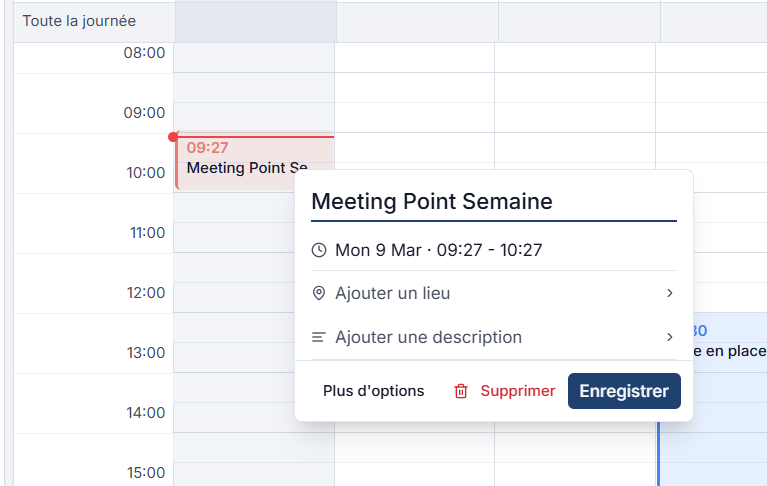
The panel displays:
| Information | Description |
|---|---|
| Title | Name of the event (e.g. Meeting Point Semaine) |
| Date and time | Day, date, and time slot (e.g. Mon 9 Mar - 09:27 - 10:27) |
| Location | Event location (click to add or edit) |
| Description | Notes or details (click to add or edit) |
Step 2: Edit the information
From the detail panel, you can:
- Edit the title: click on the title to rename it
- Add a location: click on Add a location to enter the address or venue name
- Add a description: click on Add a description to enter notes
Step 3: Save or delete
Three actions are available at the bottom of the panel:
| Action | Description |
|---|---|
| More options | Opens the full event form (recurrence, reminders, linked entities, color) |
| Delete | Deletes the event from the calendar |
| Save | Saves the changes |
Expected result
Changes are saved immediately. The updated event displays in the calendar with the new information.
Limitations and useful information
- For a recurring event, the modification can apply to a single occurrence or to the entire series (via More options).
- Deleting a recurring event offers the choice between deleting the occurrence or the entire series.
Need help?
Contact us: Support and contact.