Create an event
At a glance
Learn how to create an event in the Ontologie calendar, with recurrence options, reminders, and entity linking.
Before you begin
- Access to a workspace with the Calendar module
- At least one calendar created (a default calendar exists in each workspace)
Step 1: Open the calendar
Navigate to Calendar in the left sidebar. The calendar displays in monthly view by default.
Step 2: Create the event
Click on a date in the calendar or on the New event button in the toolbar.
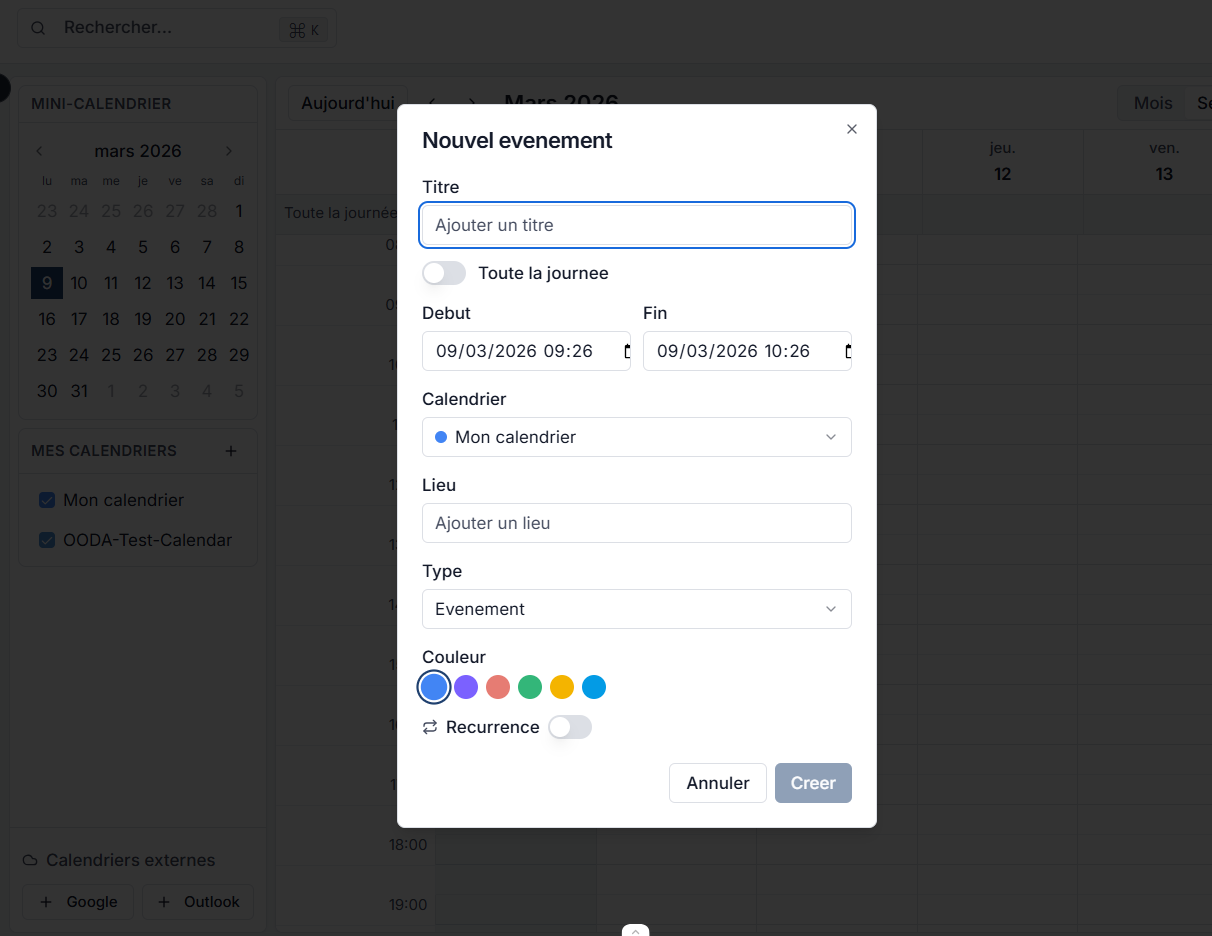
The creation form opens with the following fields:
| Field | Description | Required |
|---|---|---|
| Title | Name of the event | Yes |
| All day | Toggle to disable times (full-day event) | No |
| Start | Start date and time | Yes |
| End | End date and time | Yes |
| Calendar | Calendar in which to create the event (e.g. My calendar) | Yes |
| Location | Address or name of the event location | No |
| Type | Event type (Event by default) | No |
| Color | Event color among 7 options | No |
| Recurrence | Toggle to enable repetition (see step 3) | No |
Step 3: Configure recurrence (optional)
For a repeating event, enable the Recurrence section:
| Frequency | Example |
|---|---|
| Daily | Every day at 9 AM |
| Weekly | Every Monday and Wednesday |
| Monthly | The first Monday of each month |
| Yearly | Every March 15 |
| Custom | Every 2 days, every 3 months, etc. |
You can set an end date for the recurrence or a number of occurrences.
Step 4: Add a reminder (optional)
Add one or more reminders:
- 5 minutes before
- 15 minutes before
- 1 hour before
- 1 day before
Reminders appear as notifications in the interface.
Step 5: Link to an entity (optional)
In the Linked entities section, search for and select one or more entities from your ontology. This lets you find all events associated with a given entity.
Expected result
Your event is created and visible in the calendar. If you configured a recurrence, all occurrences appear automatically. Reminders will notify you at the chosen times.
Limitations and useful information
- A recurring event can be edited by individual occurrence or for the entire series.
- Deleting an occurrence does not delete the others.
- Events linked to entities also appear on the entity's page in the ontology.
Need help?
Contact us: Support and contact.